
Install the App
Put the lectureship programme in your pocket. The app gets its own icon on your home screen, opens full-screen, and the programme, lectures and install guide still work when internet is limited. There's nothing to download from an app store — you install it straight from your browser in under a minute.
Add it to your home screen
Follow the steps for your phone below.
Scan to open the app
Point your phone's camera at the code. It opens sabiblecollege-lectureship.org — then follow the steps below to add it to your home screen.
Tip: on most phones, open the Camera app and hold it steady over the code until a link appears.
Download QR code (for posters & prints)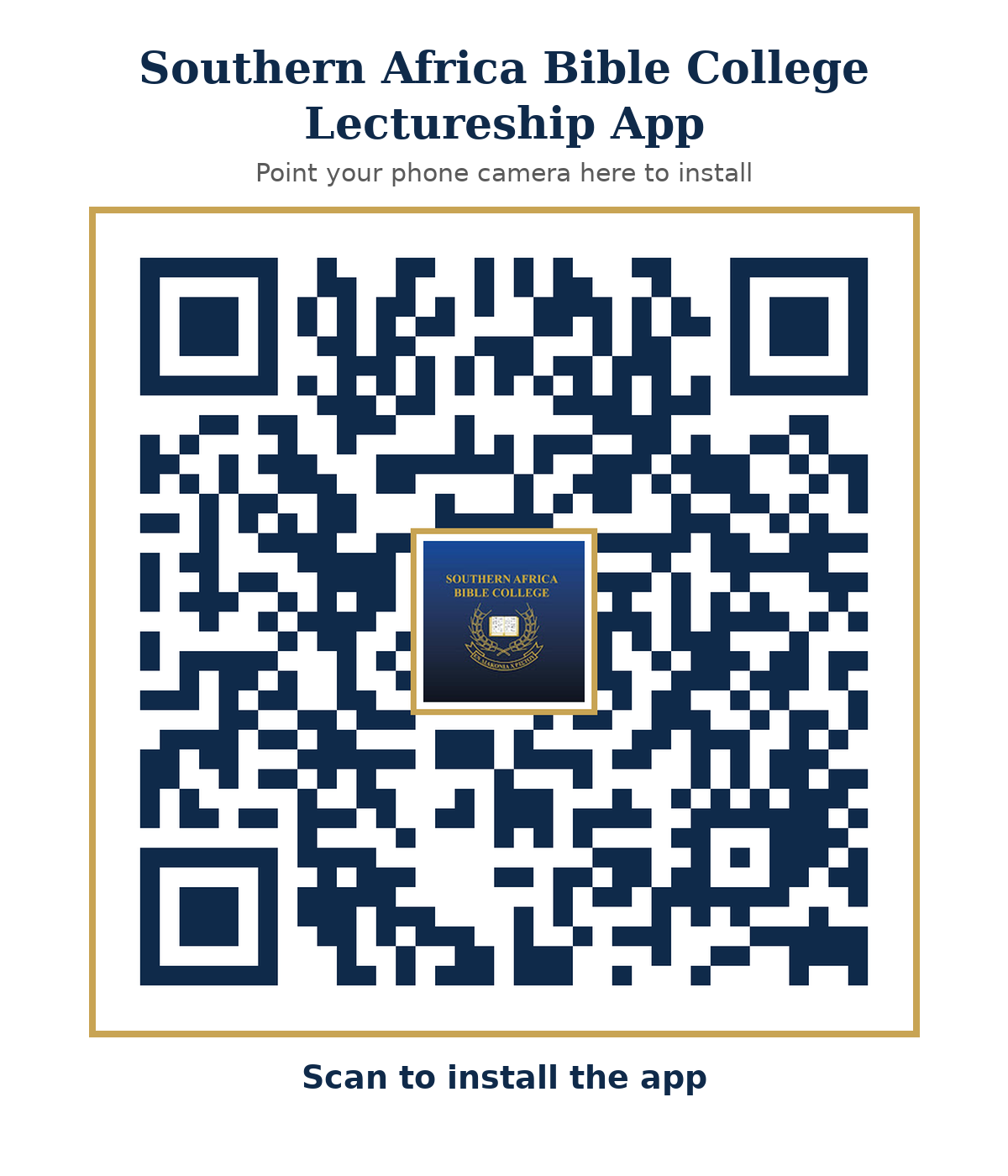
Android (Chrome)
- Open sabiblecollege-lectureship.org in Chrome.
- Tap the Install app banner at the top — or open the menu and choose Add to Home screen.
- Tap Install. The app icon appears on your home screen.
Can't see the banner? Tap the menu → Add to Home screen works on every Android phone.
iPhone / iPad (Safari)
- Open sabiblecollege-lectureship.org in Safari.
- Tap the Share button (the square with an arrow pointing up).
- Scroll down and tap Add to Home Screen, then tap Add.
Safari only: the "Add to Home Screen" option lives in Safari's Share menu, not in Chrome or other browsers on iPhone.
After you install
- Works offline: the programme, lectures list and install guide open even with limited connectivity.
- Live video streams during the lectureship — this part needs an internet connection.
- Ask the guide answers programme questions — also online only.